Yahoo encrypts almost everything, says more security updates are on the way

After finding its name on an NSA target list , Yahoo understandably pledged to shore up its security efforts . The plan was to encrypt all information moving between its data centers while simultaneously giving users the option to use encryption for all of its online services. Now the company says it’s almost there, explaining on its Tumblr page that data center traffic is now fully encrypted, Yahoo searches and homepage traffic defaults to HTTPS encryption and noting that webmail has been encrypted since January. Users can also encrypt Yahoo News, Sports, Finance and other services by manually adding HTTPS before the site’s URL. It’s good progress, but there’s more work to do. “This isn’t a project where we’ll ever check a box and be finished, ” Alex Stamos, Yahoo’s new security Chief , explained. “Our fight to protect our users and their data is an on-going and critical effort.” Next up? An encrypted build of Yahoo Messenger, due for release later this year. Check out Yahoo’s official Tumblr for the full security update . Filed under: Internet Comments Source: Yahoo

More:
Yahoo encrypts almost everything, says more security updates are on the way

Reducing the Heat In Computing

Graphene + Copper (not to scale, obviously) About a year ago, I traveled to Cornell University to interview a bunch of materials scientists who work at the nanoscale level. This means they work with stuff that is very, very tiny. A nanometer is a billionth of a meter. One of the challenges nearly all of the scientists kept mentioning is the issue of overheating in electronics. Most of us are directly familiar with the heat released from our computers when we balance them on our lap for a period of time, for example. And this becomes a big deal as devices get smaller and smaller. The smaller the copper wires—which connect chips, among other things—the more heat they emit. This is important for future devices and wearables. Scientists are exploring all kinds of solutions but a proven one has recently been announced in the journal Nano Letters. We’ve mentioned the magic material graphene before and it continues to be the superhero material, coming to the rescue over and over again. This time, it shows up as a possible damper for heated copper wires. Graphene is a one-atom thick material that can move electrons and heat. And it is able to cling to copper. Apparently by sandwiching copper between layers of graphene, the heat created by the metal is decreased by 25 percent. When attached to copper, the graphene actually changes its structure in such a way that allows the heat to move more freely through the metal, instead of being trapped in it. From left: (1) copper before any processing, (2) copper after thermal processing; (3) copper after adding graphene. Image via UCR Today (more…)

Originally posted here:
Reducing the Heat In Computing

The daily schedules of the world’s greatest geniuses

How did Beethoven, Mozart, Freud, Dickens, Darwin, Le Corbusier or Benjamin Franklin managed to be so productive and create some of the most important work in the history of art and science? Check out this great visualization by Info We Trust and find solace in the fact that some of them didn’t actually work that much. Read more…        

Taken from:
The daily schedules of the world’s greatest geniuses

Report: NASA Cuts All Non-ISS Ties with Russia Over Ukraine

In an internal memo, NASA has stated that it will suspend all interaction with the Russian government, in response to Russia’s violations of Ukraine’s territorial independence. Fortunately for U.S. astronauts Rick Mastracchio and Steve Swanson, both currently orbiting on the International Space Station, the two agencies will still cooperate to transport supplies and personnel to and from the ISS. Read more…        

See the original article here:
Report: NASA Cuts All Non-ISS Ties with Russia Over Ukraine

Windows will be free on phones, small tablets and the Internet of Things

It turns out that those rumors of Microsoft cutting Windows prices to spur adoption were true — and then some. The company has announced that Windows will be free for hardware makers to use on phones, tablets with screens under nine inches and Internet of Things devices . Suffice it to say that this is a huge move for a tech giant whose operating system licensing is arguably its bread and butter. Microsoft is obviously willing to take a financial hit to compete against Android, Chrome OS and other freely available platforms. Filed under: Cellphones , Peripherals , Tablets , Software , Microsoft Comments

View original post here:
Windows will be free on phones, small tablets and the Internet of Things

Microsoft Is Bringing the Start Menu Back to Windows 8

Windows 8.1 is getting some upgrades really soon , but Microsoft also announced a future upgrade to Windows 8 that everyone’s been asking for: the return of the desktop Start menu. Read more…        

Continue reading here:
Microsoft Is Bringing the Start Menu Back to Windows 8

Here’s what a touch-native Office for Windows looks like in action

You didn’t think Microsoft was going to launch Office for iPad without a Windows counterpart waiting in the wings, did you? Sure enough, Microsoft has just shown off its long-expected touch-native Office for Windows in beta form. The software shares a few interface elements in common with the iPad release, but not much — this is clearly built for Windows tablets, with a more traditional layout that expands objects to make them finger-friendly. There will be plenty of gesture support, though. You can circle an item with your finger to highlight it, and you can pinch and swipe to get around much of the productivity suite. Unfortunately, the folks in Redmond aren’t saying when this touch-ready Office will ship. The demo is just a preview of what to expect, so it could be a while before you’re using the software yourself. Filed under: Tablets , Software , Microsoft Comments

View original post here:
Here’s what a touch-native Office for Windows looks like in action

Windows 8.1 Universal Apps Can Run On Desktop, Mobile, and Xbox

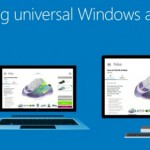
It’s a moment we’ve been waiting for for a long time. No, Microsoft’s various operating systems are not merging quite yet, but they’re about to get universal apps that work across all devices. Including the Xbox One. And best of all, you only have to buy each app once and it works everywhere. Read more…        

Continued here:
Windows 8.1 Universal Apps Can Run On Desktop, Mobile, and Xbox

Windows 8.1 update aims to win over mouse-and-keyboard users, arrives April 8th as an automatic download

The whole point of Windows 8 was to make Microsoft’s aging OS easier to use on touchscreen devices. Mission accomplished, we’d say ( more or less ). But now the folks in Redmond have a new challenge afoot: Make Windows 8 equally easy to use on tablets and traditional PCs. The company’s already made some progress — last year’s Windows 8.1 update was all about keyboard shortcuts, better multitasking and the return of the Start button (sort of). Now, with its latest update, Microsoft is going after mouse-and-keyboard users. In particular, you can pin Windows Store apps to the desktop Taskbar, and close out of a Metro app by pressing an “X” in the upper-right corner. Heck, you can even shut down without having to open the Charms Bar. Shocking, we know. It’s all very exciting, and indeed, you can see for yourselves soon enough; the update will arrive as a Windows Update download on April 8th, which means most folks will simply install it automatically. In the meantime, we’ve got a full primer after the break, along with a healthy dose of screenshots (we know you love your screenshots). Desktop Since this update is aimed mostly at keyboard-and-mouse users, let’s start where those folks are likely to spend a lot of their time: the desktop. For starters, depending on what kind of machine you have, the PC manufacturer might program it to boot into the desktop by default. Of course, that was already an option in Windows 8.1; the difference is that if you buy, say, a mouse-and-keyboard machine, like a clamshell laptop, the OEM can make that the default so that you never even have to bother with the settings. And yes, if you’d rather go straight into the modern Start Screen, you can do that too by unchecking a box in Taskbar settings. Speaking of the Taskbar, the rumors were true: You can now pin Windows Store apps to the bottom of the screen, along with traditional legacy programs. In particular, the Windows Store shortcut will come pinned by default on every Windows machine, though you can, of course, remove it if you’re so inclined. As for everything else, you’ll have to pin those programs manually. In fact, the default setting is not to show Windows Store apps on the Taskbar at all, which means another visit to the Taskbar settings is in order. Start Screen and Windows Store apps It’s not just Windows Store apps making a cameo on the desktop — the Start Screen has meanwhile gotten more mouse-friendly. Most exciting of all, perhaps, are those new power and search buttons you can see in the upper-right corner. That’s right, you no longer have to expose the Charms Bar to power down or restart your machine (search is a bit different, because all you ever had to do to bring up search results was start typing ). What’s interesting is that if you’re using a touch-first device like a tablet, the power button won’t be there; just the search icon. The reason: Users are apparently used to shutting down their mobile devices by holding down a physical power button, but with laptops they still expect a soft key. We won’t argue with that. But wait, here comes another revelation: right-clicking. Now, if you right-click on something like a Live Tile, you’ll see a pop-up menu right there, where your cursor is. That way, you don’t have to bring your mouse to the bottom of the screen, where the menu options would normally show up. Forgive us if we sound sarcastic here — we really don’t mean to — but there just isn’t much to say about this. It’s a welcome change, but also something that probably should have been part of Windows to begin with. Additionally — and this feels like a small change — anytime you install a new app you’ll see an arrow at the bottom of the Start Screen with a message that says something like, “12 new apps installed.” See? Fairly minor change. But it makes sense. Meanwhile, inside the Windows Store apps themselves, navigation will feel a little more similar to using Windows on the desktop. In particular, if you hover at the top of the screen, you’ll bring up the Title Bar, showing the name of the app, with an options menu on the left, and an “X” on the right to close out. Throughout, too, Microsoft has fine-tuned Windows so that all of the existing mouse gestures are more precise. For instance, in earlier builds of Win 8, it was perhaps too easy to move your cursor into the upper-left corner and accidentally pull up a list of open apps (remember that the back button in IE is located in the same corner, which makes it a tough spot to avoid). Now, following this latest update, mousework in Windows feels more… controlled. So, if you want to see that list of open apps, you can still poke around in the upper-left corner, but you’ll really have to push your mouse in there; you’re less likely to pull up the list by mistake. Ditto for bringing up the Charms Bar on the right, or menu settings on the bottom of the screen; they’re the same gestures, just with a little less sensitivity. Performance enhancements In addition to all the fun stuff (read: features we can capture in screenshots), Microsoft also made a bunch of under-the-hood tweaks that should improve performance, regardless of what kind of device you’re using. First off, Microsoft will be shipping its operating system to manufacturers as a compressed image, so that it takes up less space than it would have otherwise. Additionally, the so-called Process Lifetime Manager in Windows more aggressively suspends apps to reclaim memory. The keyword there, of course, is “suspend, ” as opposed to “terminate, ” which means although the OS should now be more memory-efficient, apps should still open quickly the next time you use them. Think of it as a deeper sleep state for apps, similar to what laptop makers have already achieved for Ultrabooks. Finally, Microsoft improved compatibility with IE, a tweak that should be especially good news for enterprise folks using Internet Explorer on Windows 7. Filed under: Software , Microsoft Comments

More:
Windows 8.1 update aims to win over mouse-and-keyboard users, arrives April 8th as an automatic download